
Blog
IPTV Freezing in the UAE: Why It Happens & 10 Proven Fixes That Actually Work.

May
Nothing kills the excitement of a live football match or a relaxing movie night faster than constant freezing, buffering, and lag on your IPTV service. If you’re in the UAE and such an event happens, especially between 7 PM and 11 PM, you’re far from alone. The frustrating part? In most cases, your IPTV provider isn’t the main problem.
IPTV delivers live television over the internet in real time. Unlike Netflix or YouTube (which can pre-buffer content), IPTV has almost zero tolerance for even a one- or two-second network hiccup. When the connection wavers, the stream freezes instantly.
Why IPTV Freezing Is So Common in the UAE
The UAE has some of the fastest internet in the region, yet peak-hour congestion still creates major headaches. Between 7 PM and 11 PM, millions of residents simultaneously stream, game, video-call, and scroll, pushing residential networks to their limits. This evening rush is one of the biggest reasons IPTV performs noticeably worse during those hours.
Here are the real culprits behind IPTV freezing in the UAE:
- Slow or unstable internet connection
- Weak Wi-Fi signal or interference
- ISP traffic throttling during peak hours
- IPTV server congestion on the provider side
- Overheating or underpowered streaming device
- Incorrect app settings or outdated software
- Old or overloaded router
- Full app cache and temporary files
- Poorly configured VPN (or VPN that’s too far away)
- Streaming in 4K/Full HD on a weak or congested connection
10 Effective Fixes for IPTV Freezing in the UAE
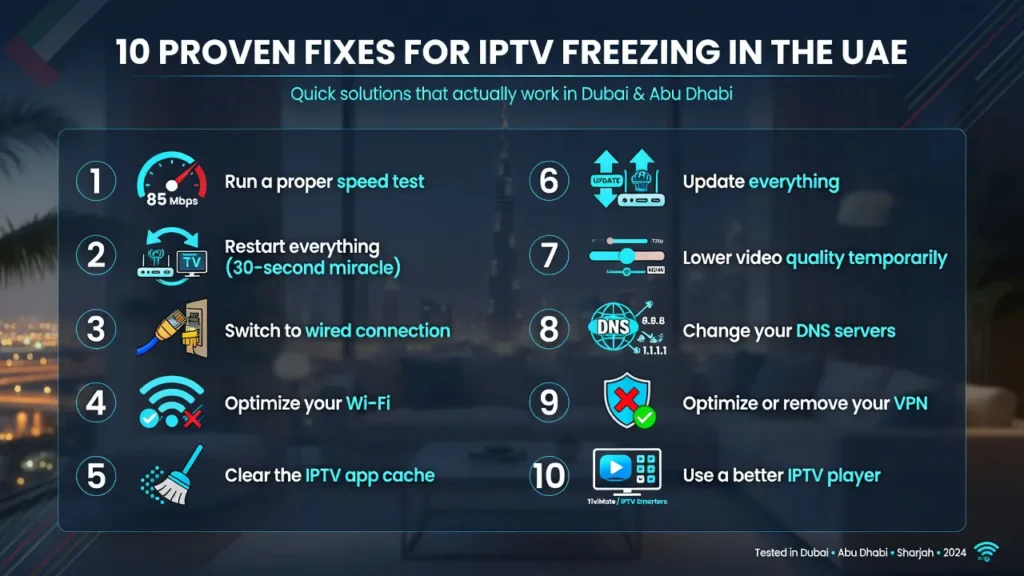
1. Run a proper speed test: Use fast.com or speedtest.net. For smooth HD you need at least 25 Mbps; for 4K you want 50+ Mbps with low ping (<30 ms). If your speeds drop dramatically after 7 PM, you’re likely hitting ISP congestion.
2. Restart everything (the 30-second miracle): Unplug your router for 30 seconds, restart your TV/box/phone, then reconnect. This clears temporary glitches more often than people expect.
3. Switch to a wired connection: If possible, connect your streaming device directly to the router with an Ethernet cable. Wi-Fi is convenient but far less stable for real-time IPTV.
4. Optimize your Wi-Fi:
- Use the 5 GHz band instead of 2.4 GHz (faster, less interference).
- Move the router closer or use a Wi-Fi 6 mesh system if you have thick walls.
- Change the Wi-Fi channel in your router settings to a less crowded one.
5. Clear the IPTV app cache: on Android TV, Fire Stick, or Smart TV: Settings → Apps → IPTV app → Storage → Clear Cache (and Clear Data if needed). This fixes freezing caused by corrupted temporary files.
6. Update everything Update the IPTV app, your TV firmware, and router firmware. Outdated software is a surprisingly common cause of random freezing.
7. Lower the video quality temporarily: In your IPTV player settings, drop from 4K/1080p to 720p or even 480p during peak hours. You’ll get smooth playback instead of constant buffering.
8. Change your DNS servers: Switch to Google DNS (8.8.8.8 / 8.8.4.4) or Cloudflare (1.1.1.1). This often bypasses ISP routing issues and reduces buffering dramatically.
9. Optimize or remove your VPN: If you’re using a VPN, try a different server location closer to the UAE (Dubai or Abu Dhabi servers). If the VPN is causing lag, turn it off temporarily to test.
10. Use a better IPTV player: Many users fix freezing simply by switching players.
- TiviMate (Android) – best buffer settings and EPG
- Ibo X or GSE Smart IPTV
- Hot Player for quick testing
Quick Extra Tips Specific to UAE Users
- Etisalat and du both throttle heavy streaming during peak hours on some residential plans. If the problem persists every evening, consider upgrading to a higher-tier package or a business line.
- During major football tournaments or Ramadan, server load on IPTV providers spikes; have a backup playlist ready.
- Keep your device cool. Overheating is a silent killer of smooth streaming in the UAE’s hot climate.
Most people fix 80–90% of their IPTV freezing issues by combining steps 1–5. Please start with those and work your way down the list.
Still freezing after trying everything? Drop your current internet speed, device type, and whether you use Wi-Fi or Ethernet in the comments—I’ll give you a personalized fix with a 24-hour free trial.
